
As you may have learned from the API, the jsFloater class gives you a lot of flexibility in your floats, with “stick” values and padding available to add to your floating object x and y values. I thought it might be useful, however, to break down some of the available methods in terms of a box model, to help explain two different types of floating you can use: what we’re calling proportional and strict.
jsFloater requires you to define a minimum and width and height for your stage, so that you can take a given design comp and figure out how small the browser window can get before the objects begin crashing into each other and/or overlapping in undersirable ways. This is an issue common to liquid GUIs / layouts, one which jsFloater lets you fix. But, you may not always want your elements to float based upon the very edges of the current browser window: if, for example, your design comp figures at a minimum window size of 800 x 600, you may want your elements to float somewhere between the minimum value and the edge of the window. You could accomplish that with typical liquid GUI layout types and a bunch of your own math – or, you could let jsFloater do it for you, using the proportional float modes available.
We’ll examine the basic boxes in a moment, but first let’s recap the horizontal and vertical floats. The images below are all taken from the jsFloater visual API example, which can also be exported from the FLA file included in the download. It may help you to have the visual API guide open while you read through this example, so you can experiment and see how the objects move and react.
First, let’s look at the available align modes for the floatVer (vertical) method.
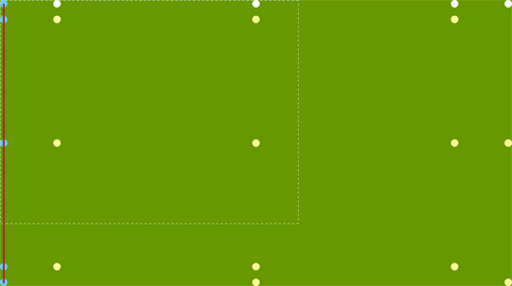
jsFloater Vertical align modes
As you can see, one of the objects is floating directly in the middle (vertically), one each is floating at the very top and bottom (strict), and two are floating somewhere that represents the a ratio of difference between the minimum height (height of the dotted box) and the current window height. Those two are using the proportional modes.
Let’s look at the floats for the floatHor (horizontal) method:
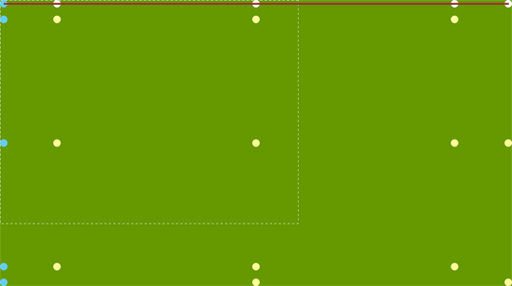
jsFloater Horizontal align modes
Although the left-most horiztonally floating object is currently obscured by the top-most vertically floating object, you should be able to see here how the horizontal mode is analogous to the vertical mode: one object aligned perfectly center, two strictly aligned left and right, and two floating proportionally between the minimum width (width of the dotted box) and current window width.
So, here is what the proportional box looks like, using nine floating modes (including the object at center-middle):
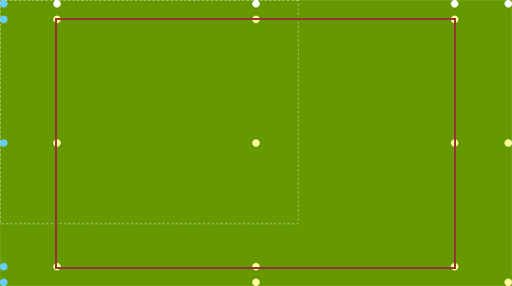
jsFloater proportional box
All of the nine objects being floated in the above box are using the floatHorVer method, width proportional align modes. This proportional align is based on the difference between the minimum value and the current browser window size, so that elements float out into the browser space proportionally, but to not have to be stuck to the edges of the window, or to a fixed distance from the edges of the window.
Of course, you can combine the different float methods and modes however you like. One possible use might be using proportional floats of the floatHorVer method for your right- and bottom-most objects, and using other floats for your left- and top-most items, for example. It’s up to you and your creativity.
Now, let’s look at the strict box:
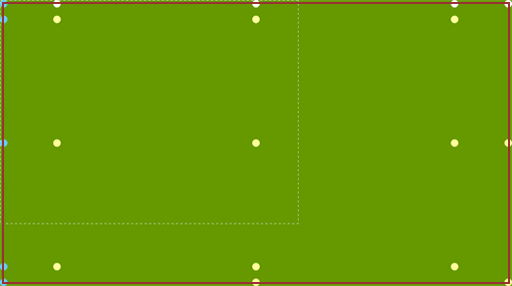
jsFloater strict box
Notice, in the example above, that we’re now using a combination of the floatVer, floatHor, and floatHorVer methods to achieve a box that goes to the very edges of the current browser window size. The reason for this can be explained using a simple example: look at the bottom left corner of the box. That object only needs to float vertically, as the whole browser window is anchored to the top and the left.
Once again, you can assign particular x and y “stick” values to your vertically and horizontally floated objects, respectively. You can pad the float of any object and also use your own math to create some custom behaviors on browser resize. Hope you have fun experimenting with the various methods and modes.
It’s really well done! Respect to author.